AI Inpainting
Fix Any Detail Without Regenerating the Asset
Mask a region and describe what belongs there. Fix a hand, remove a logo, change a sign.
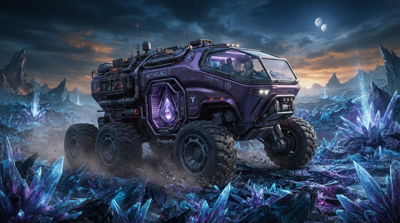
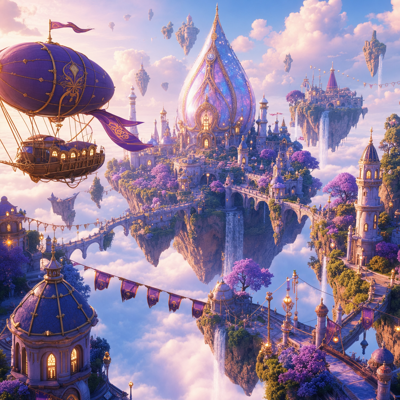
![Made with FLUX.1 Krea [dev]](https://media.dev2.layer.ai/workspaces/009d5ac0-fac3-45b1-83dc-1f1aa70c83f4/files/c342be02-f748-4589-a12e-25abac27d5ef/flux-dev-krea-posted-0_400.png)
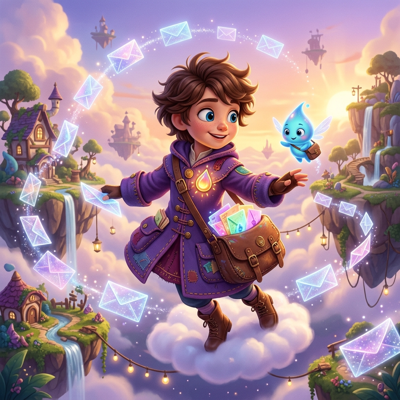
![Made with FLUX.1 Krea [dev]](https://media.dev2.layer.ai/workspaces/009d5ac0-fac3-45b1-83dc-1f1aa70c83f4/files/932d763a-f815-481b-9799-9d4a382b4df0/flux-dev-krea-posted-1_400.png)
Inpaint
A generation is 95% right: the character is perfect, the composition works, but one hand is wrong, a logo is garbled, or a prop doesn't fit the brief. Regenerating the whole image gambles away everything that already works. Fixing it by hand in a paint tool costs an artist's afternoon.
Inpainting on Layer makes those fixes surgical. Brush over the problem area, describe what should be there instead, and Layer regenerates just that region—blended into the surrounding art so the fix is invisible. When words aren't enough, Draw mode lets you sketch directly on the image to show exactly what you mean.
![Made with FLUX.1 Kontext [dev]](https://media.dev2.layer.ai/workspaces/009d5ac0-fac3-45b1-83dc-1f1aa70c83f4/files/4ae97550-a0c4-4a0c-be11-e0a214214c3d/flux-kontext-dev-posted-0_400.png)
![Made with FLUX.1 Krea [dev]](https://media.dev2.layer.ai/workspaces/009d5ac0-fac3-45b1-83dc-1f1aa70c83f4/files/3f30fd9b-3727-44f5-a94f-7b43d31c9b4a/flux-dev-krea-posted-2_400.png)
![Made with FLUX.1 Kontext [dev]](https://media.dev2.layer.ai/workspaces/009d5ac0-fac3-45b1-83dc-1f1aa70c83f4/files/021d83d9-dbc9-4efb-9bce-b5b7bff3f887/flux-kontext-dev-posted-1_400.png)
01
Key capabilities
Brush-Based Masking
Paint over exactly the region you want to change, from a stray artifact to an entire garment. Everything outside the mask is guaranteed to stay pixel-identical.
Describe the Replacement
Pair your mask with a plain-language description—"a leather satchel," "clean grass, no rocks," "an open treasure chest"—and the model fills the region to match.
Draw Mode
Sketch directly on the image to indicate shape, placement, or pose, then describe the edit. Your rough strokes guide the generation, so you can art-direct with a stylus instead of a paragraph.
Seamless, On-Style Fills
Regenerated regions inherit the lighting, palette, and rendering style of the surrounding image, so fixes read as part of the original asset rather than a patch.
Model Choice
Inpaint with leading image models on Layer—including FLUX, QWEN, and SDXL—or with your own trained styles, so fills match the look your team has already established.
![Made with FLUX.1 Kontext [dev]](https://media.dev2.layer.ai/workspaces/009d5ac0-fac3-45b1-83dc-1f1aa70c83f4/files/300e3f56-f775-4782-bb14-03a3248054ee/flux-kontext-dev-posted-2_400.png)
![Made with FLUX.1 [dev]](https://media.dev2.layer.ai/workspaces/009d5ac0-fac3-45b1-83dc-1f1aa70c83f4/files/048d71df-56ac-4934-ae1b-9af025f7a271/flux-posted-0_400.png)
![Made with FLUX.1 [dev]](https://media.dev2.layer.ai/workspaces/009d5ac0-fac3-45b1-83dc-1f1aa70c83f4/files/bb9d860d-6406-4372-be31-3abd0ace6df9/flux-posted-1_400.png)
02
How it works
Select your asset
Open any image in Layer—a fresh generation, a work-in-progress, or artwork uploaded from your existing library.
Mask or draw, then describe
Brush over the area to change, or switch to Draw mode and sketch what you want directly on the canvas. Add a short description of the replacement.
Generate and refine
Layer regenerates only the masked region. Compare results, adjust the mask or wording, and iterate until the fix is seamless.
The industry's best image models. One platform.
![Made with FLUX.1 [dev]](https://media.dev2.layer.ai/workspaces/009d5ac0-fac3-45b1-83dc-1f1aa70c83f4/files/e3a5318e-e09a-4347-bf66-762abf0da85b/flux-posted-2_400.png)
![Made with FLUX.1 [dev]](https://media.dev2.layer.ai/workspaces/009d5ac0-fac3-45b1-83dc-1f1aa70c83f4/files/87483195-a950-4b9a-8004-b5a35cc39e95/flux-posted-3_400.png)
03
Built for game production
Game Art Cleanup
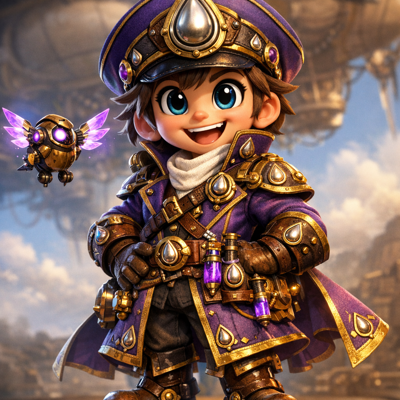
Fix anatomy, hands, artifacts, and off-brief details in otherwise-approved generations, so promising outputs become shippable assets instead of discards.
UA Creative Variants
Swap a single element—the featured item, the character's expression, the reward on screen—to produce ad variants from one approved composition.
Live-Ops Reskins
Update just the seasonal elements of an existing asset: change the decorations, the featured currency, or the event prop while the familiar scene stays intact.
Marketing Assets
Correct details on key art and store creative without going back to the original artist or source files, keeping campaign timelines on track.
Layer is trusted by 400+ game studios and entertainment brands, including Zynga, SciPlay, and Huuuge Games. Inpainting keeps your best generations alive—fix the 5% that's wrong and ship the 95% that's right.
04
Related features
Questions about Inpaint
What is AI inpainting?+
Inpainting lets you select a region of an image with a brush, describe what should replace it, and have AI regenerate only that area. The rest of the asset stays exactly as it was.
What is Draw mode?+
Draw mode lets you sketch directly on the image to indicate what you want, then describe the edit. It's a fast way to communicate shape and placement when a mask alone isn't expressive enough.
Can I use inpainting to remove objects?+
Yes. Mask the object and describe what should fill the space—background, texture, or a replacement element—and Layer regenerates the region seamlessly.
Does inpainting keep the rest of my image on-style?+
Yes. Only the masked region is regenerated, and the fill is blended to match the surrounding lighting, palette, and style of the original asset.
Can inpainting run in batches or workflows?+
Yes. Like every editing tool on Layer, inpainting works on single assets or in batches at scale, and it can run inside node-based workflows for repeatable pipelines.
Try Inpaint today
Stop regenerating whole assets to fix one detail. Start inpainting free on Layer—no credit card required.